
ASMR image
ASMR Image Generator
Generate calm, tactile ASMR images for covers, thumbnails, channel art and product previews. Start from text or edit an existing still, then keep the palette and texture consistent with your video workflow.
ASMR image
Try this workflow in the workspace
Your starter prompt is already loaded. Change the texture, motion or framing, then generate with the model that fits the result you want.
ai.image.generator.form.model
ai.image.generator.form.quick_select
ai.image.generator.credits_cost
ai.image.generator.form.resolution
ai.image.generator.form.aspect_ratio
ai.image.generator.form.output_format
ai.image.generator.form.web_search_hint
ASMR cover starter prompt
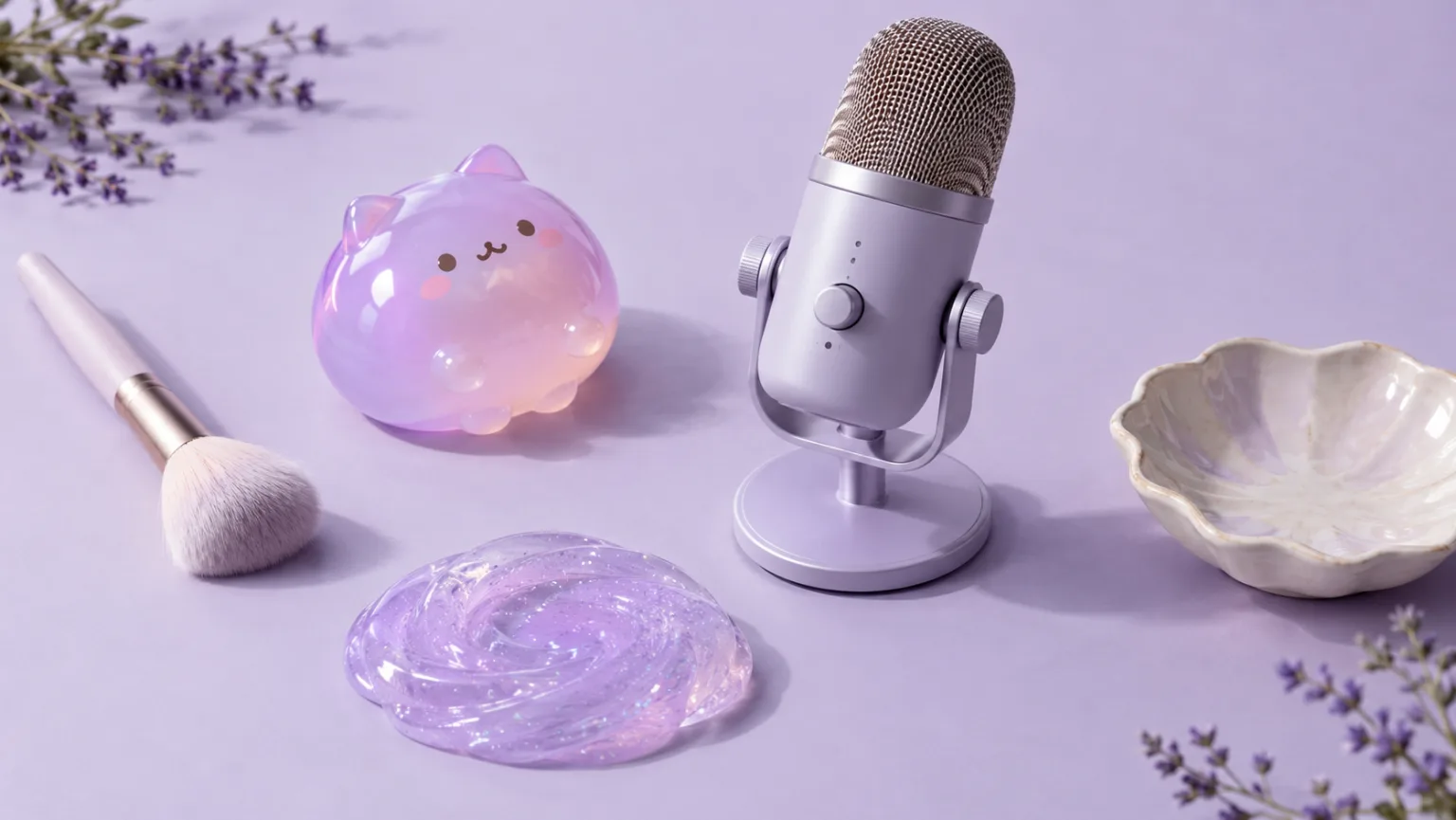
A calm still life with a microphone, a glossy squishy, a slime swatch and a brush on a lavender surface.
Editorial still life of ASMR objects on a soft lavender surface: condenser microphone, makeup brush, glossy squishy toy, translucent slime swatch and ceramic dish, generous negative space, soft shadows, no text, no logos, no watermark.
A still image is the anchor for a video series
A strong ASMR series needs a visual anchor. The cover, thumbnail and first frame tell the viewer what kind of texture to expect before they press play. Generating a still first gives you a cheaper way to test the palette, the object and the composition before you spend credits on video.
Use the image workflow to explore a concept, then carry the winning frame into the video workflow. Keep the same surface, light and color notes so the still and the clip feel like part of the same series. A consistent visual language makes a channel easier to recognize.
- Test the palette and composition as a still first.
- Carry the winning frame into image-to-video.
- Keep surface, light and color notes consistent.
Design for the crop, not the full canvas
Thumbnails are small. A composition that looks beautiful at full size can become unreadable when it is reduced to a phone-sized card. Put the main texture in the center, keep the background simple and leave room for a title or a face if the platform requires one.
If you need a vertical cover, generate a taller composition rather than cropping a wide image. If you need a square thumbnail, keep the subject centered and avoid important details near the edges. The image workflow supports several aspect ratios, so choose the one that matches the final placement.
- Keep the main texture near the center.
- Leave negative space for titles and badges.
- Generate for the final aspect ratio.
Use image editing to keep a series consistent
Image-to-image is useful when you already have a frame that works and want to change one element: the object, the background, the color or the lighting. Keep the rest of the composition stable and describe the change precisely. That is easier to control than generating a new scene from scratch.
You can also use editing to create a matching cover from a video frame. Preserve the subject and the framing, then adjust the light or add a clean background. Avoid changing the identity of a person or the shape of a product if the image will be used as a literal representation.
- Change one element at a time.
- Preserve the subject and framing when editing.
- Use a video frame as the visual anchor for a cover.
Write an image prompt with a clear hierarchy
An image prompt needs a subject, a surface, a light and a composition. Start with the object and the texture, then add the background and the camera angle. If the image will carry text, ask for negative space in the area where the text will go. If the image is for a thumbnail, make the subject large and the background quiet.
Avoid overloading the prompt with several competing ideas. A single hero object with one strong texture is easier to read than a table full of props. If you need a busier composition, build it in layers or use image editing after the base image works.
- Subject, surface, light, composition.
- Reserve negative space before adding text.
- One hero object is easier to read than many.
Check the image before it becomes a cover
Look at the image at thumbnail size first. If the texture disappears, the cover will not work. Then check the object edges, the reflections and any text-like artifacts. Generative images can produce convincing surfaces with impossible details, especially around hands, tools and transparent materials.
If the image will be used in a product listing, keep a real photo as the primary reference. Use the generated image for mood, packaging concepts or channel art. Do not let a synthetic cover imply a product feature or a result that the buyer will not receive.
- Review at thumbnail size.
- Check edges, reflections and text artifacts.
- Keep real product photos for product claims.
Model and provider notes
Image workflows use the configured KIE model catalog, including GPT Image 2, Nano Banana 2, Seedream, FLUX and Qwen where available. Video workflows use the configured Seedance provider chain, with fallback routing to KIE, WaveSpeed, SeeAPI, fal or Replicate where enabled. Model availability, resolution, duration and credit cost depend on the workflow you select.
AI output varies between runs. Check hands, reflections, text, anatomy and motion before publishing, and label synthetic media where your platform requires it.
Questions creators ask
Related ASMR workflows
Pick the next workflow that matches the texture, motion or subject you want to create.
Squishy ASMR Generator
Create squishy ASMR videos built around touch, sound and a slow reveal. Use the workspace to shape a close-up, control the compression and keep the visual rhythm calm enough to loop.
Slime Video Generator
Create glossy slime videos that show the stretch, the fold and the bubble instead of hiding them. Start with a prompt or a still image, then generate a short clip with a clean background and a readable motion path.
AI ASMR Video Generator
Turn a text prompt or a still image into a short, satisfying ASMR clip. Squishy ASMR gives you a working video workspace, starter prompts and separate workflows for squishy, slime, sand, soap and food textures.
Mukbang Video Generator
Create mukbang-style food close-ups without a full production set. Focus on steam, gloss, crunch and the moment a texture changes, then generate a short clip for social video or a menu preview.
Make the cover before the clip
Load the still-life recipe, generate a cover, then carry the winning frame into the video workflow.
Published by Squishy ASMR · Last updated 2026-10-22