
ASMR video
ASMR Video Generator
Make calm, tactile ASMR clips without building a studio scene from scratch. Start with a prompt or a still image, choose the motion and generate a short video you can review, refine and publish.
ASMR video
Try this workflow in the workspace
Your starter prompt is already loaded. Change the texture, motion or framing, then generate with the model that fits the result you want.
ai.video.generator.credits_cost
ai.video.generator.form.advanced
ai.video.generator.form.workflow_runtime_hint
ai.video.generator.form.fast_hint
ai.video.generator.form.generate_audio_hint
ai.video.generator.no_results
ASMR studio starter prompt
A calm tabletop trigger scene with a fixed camera and a single tactile action.
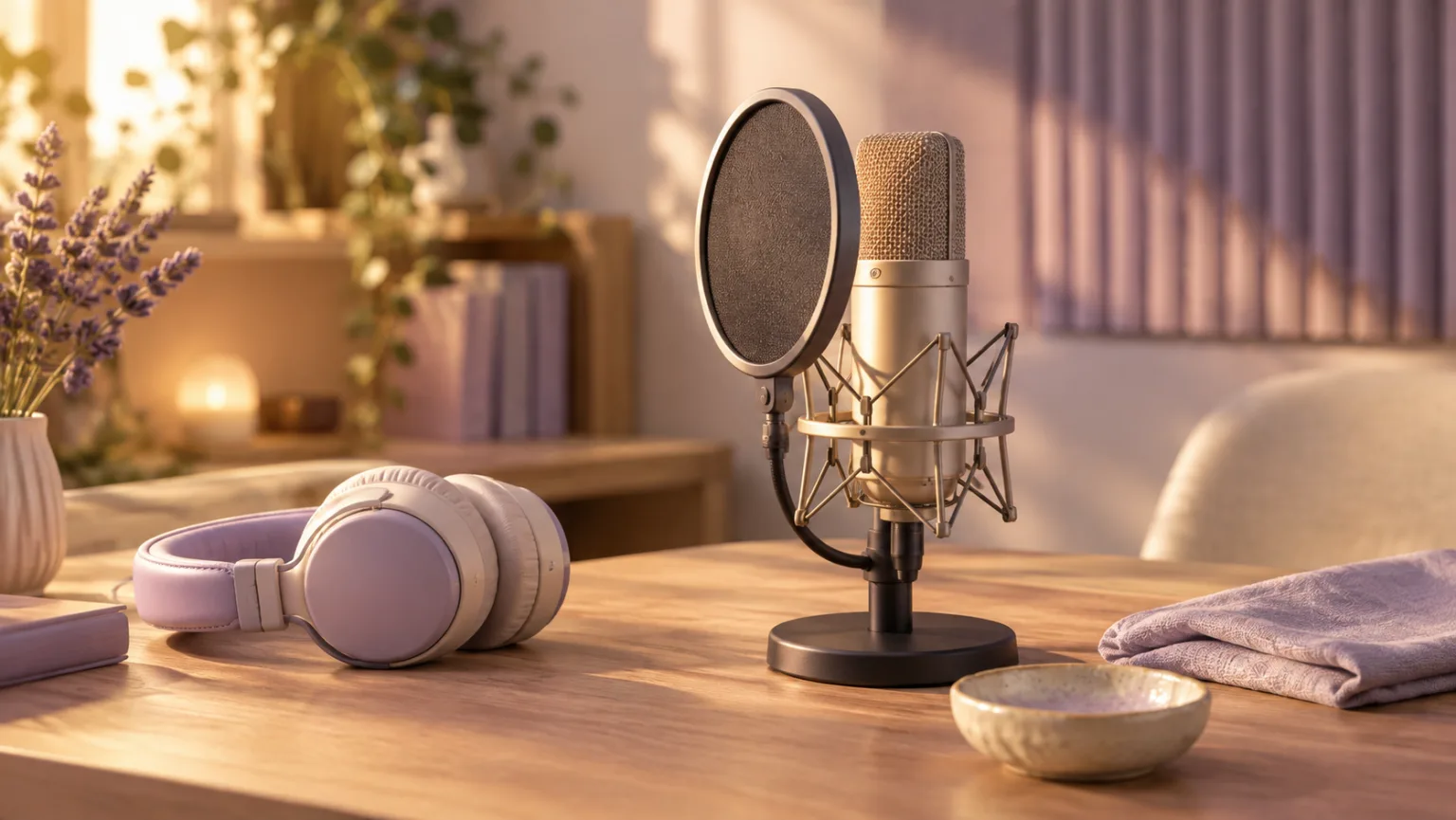
Calm ASMR studio close-up: a wood-handled brush tapping a matte ceramic surface, pastel linen, condenser microphone slightly out of focus in the background, fixed camera, soft side light, slow deliberate motion, realistic texture, no text, no logos, no watermark.
A workflow for the visual side of ASMR
ASMR videos are usually built around a small physical event: a brush moving across a surface, a lid opening, a fingertip tapping glass or a soft object compressing. The visual has to make that event legible before the sound can do its work. This ASMR video generator focuses on that visual layer, so you can produce a clean close-up even when you do not have a camera, a lighting setup or a quiet room available.
You can start from text when the scene is still an idea, or from an image when you already have the composition. The workspace keeps the prompt, the model choice and the output settings in one place. That is useful for creators who publish several short clips a week and need a repeatable production step rather than a one-off experiment.
- Use a still image when the first frame matters.
- Use text when you are testing a new trigger or camera angle.
- Use references when a product or surface must stay consistent.
Choose the trigger before you choose the style
A trigger is not a visual filter. It is the physical action the viewer expects to hear and see. Tapping, scratching, crinkling, pouring, pressing and slicing all need different framing. A tapping clip often works best with a fixed camera and a tight frame; a pouring clip needs room for the stream and the container; a slicing clip needs a clean line of action and a surface that shows the cut.
Decide on the trigger first, then build the scene around it. If you want a calm, no-talking clip, keep the movement slow and remove distractions from the background. If you want a more energetic clip, add a faster action or a second cut, but keep the texture readable. The model will follow the strongest instruction, so make the trigger the strongest instruction.
- Tapping and scratching: fixed camera, tight crop, clear contact point.
- Pouring and stretching: leave room for the material to move.
- Cutting and slicing: show the tool, the surface and the separated pieces.
Write a prompt that describes the frame
Begin with what the camera sees, not with a mood word. For example, say that the frame is a macro shot of a translucent jelly toy on a matte pastel surface, with two fingertips entering from the top edge and pressing slowly. Then add the light, the background and the motion. A mood word such as relaxing is useful, but it cannot replace a description of the object and the action.
The prompt should also say what to keep out of the frame. Text, logos, extra hands and busy background objects are common sources of unusable output. If the clip will carry a caption, ask for negative space in the upper third. If it will be cropped to vertical, ask for a centered subject with room above and below.
- Start with the subject and the surface.
- Describe the contact and the speed of the action.
- Reserve negative space for captions and platform UI.
Build a small library of repeatable motions
Once a prompt works, save it as a motion recipe. A recipe might be a slow press with a push-in, a gentle side-to-side brush stroke, or a top-down pour with a fixed camera. Reusing a proven motion makes it easier to compare models and to produce a series that feels consistent without looking identical.
Keep one variable per test. If you change the model, keep the prompt and settings the same. If you change the duration, keep the prompt and model the same. That way you learn whether the difference came from the model, the motion or the length. It also prevents the common trap of rewriting the entire prompt after every disappointing result.
- Name each recipe by its trigger and camera move.
- Store the prompt, model, duration and seed together.
- Retest a recipe when a model version changes.
Review the clip like an editor, not a fan
Watch the clip with the sound off first. If the visual does not communicate the trigger, the audio will not rescue it. Then watch it with sound and check whether the motion and the audio imply the same material. A wet sound over a dry-looking surface feels wrong even when each element is technically fine.
Check the first two seconds and the last two seconds separately. The opening needs to establish the subject quickly; the ending needs to either complete the action or loop cleanly. If the clip will be used in a paid ad or a product listing, review the claims and the synthetic-media disclosure requirements before publishing.
- Watch once without sound, then once with sound.
- Check the opening, the ending and the loop point.
- Review platform disclosure rules before publishing.
Model and provider notes
Image workflows use the configured KIE model catalog, including GPT Image 2, Nano Banana 2, Seedream, FLUX and Qwen where available. Video workflows use the configured Seedance provider chain, with fallback routing to KIE, WaveSpeed, SeeAPI, fal or Replicate where enabled. Model availability, resolution, duration and credit cost depend on the workflow you select.
AI output varies between runs. Check hands, reflections, text, anatomy and motion before publishing, and label synthetic media where your platform requires it.
Questions creators ask
Related ASMR workflows
Pick the next workflow that matches the texture, motion or subject you want to create.
AI ASMR Video Generator
Turn a text prompt or a still image into a short, satisfying ASMR clip. Squishy ASMR gives you a working video workspace, starter prompts and separate workflows for squishy, slime, sand, soap and food textures.
Mukbang Video Generator
Create mukbang-style food close-ups without a full production set. Focus on steam, gloss, crunch and the moment a texture changes, then generate a short clip for social video or a menu preview.
Soap Cutting Video Generator
Create soap cutting videos with a clean slice, a visible shaving and a calm close-up rhythm. Generate a short clip from a prompt or still image, then refine the edge and the lighting.
Satisfying Video Generator
Generate oddly satisfying videos built around a clean action, a readable texture and a loop that invites another watch. Start with a prompt or a still image and keep the frame focused on the moment that pays off.
Start with one trigger and one clean frame
Open the ASMR video workspace, load the starter prompt and generate a short test before you add a second idea.
Published by Squishy ASMR · Last updated 2026-10-22