
Kinetic sand video
Kinetic Sand Video Generator
Create kinetic sand videos built around crisp cuts, clean edges and the soft collapse of textured blocks. Start with a prompt or a still image, then generate a short clip that keeps the geometry readable.
Kinetic sand video
Try this workflow in the workspace
Your starter prompt is already loaded. Change the texture, motion or framing, then generate with the model that fits the result you want.
ai.video.generator.credits_cost
ai.video.generator.form.advanced
ai.video.generator.form.workflow_runtime_hint
ai.video.generator.form.fast_hint
ai.video.generator.form.generate_audio_hint
ai.video.generator.no_results
Kinetic sand cut starter prompt
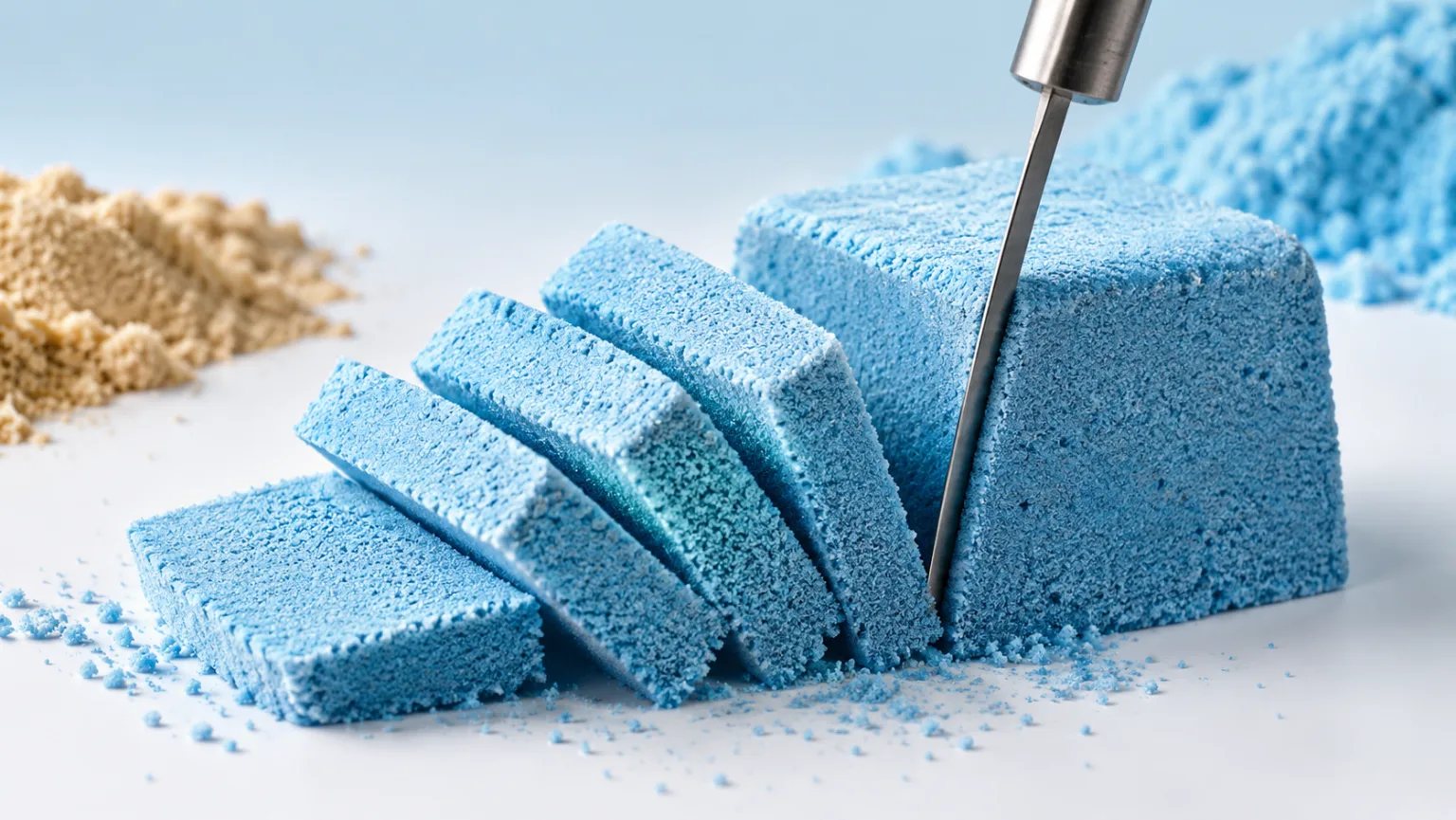
A top-down slice through a pastel kinetic sand block with a thin metal tool and a clean separation.
Top-down video of a thin metal tool slicing a pastel blue kinetic sand block, crisp textured cut, clean separation, warm sand and mint palette, minimal studio background, raking light, no text, no logos, no watermark.
Why kinetic sand reads so well on video
Kinetic sand holds a shape. That is the whole appeal. A knife or wire can cut a clean block, and the separated piece keeps its edge long enough for the viewer to see what happened. The material is forgiving but still textured, which makes it a strong subject for a short, loopable clip.
The best kinetic sand videos show the cut and the result, not just the tool moving. Start with a block or a smoothed surface, make one cut, and let the separated piece settle. If the clip has time for a second cut, keep it parallel to the first so the geometry stays readable.
- Start with a flat or block-shaped surface.
- Make one clean cut and show the separated piece.
- Keep subsequent cuts parallel or clearly related.
Use a top-down frame for geometry
A top-down camera makes the cut lines and the block shapes easy to read. A three-quarter angle shows the depth and the texture better, but it can hide the cut line if the tool is in the way. Choose the angle based on whether the clip is about geometry or about texture.
A fixed camera is usually stronger than a moving one. The action is the cut, not the camera. If you want movement, add a very slow push-in after the cut has landed, or use a second shot for the wider context.
- Top-down for clean geometry and cut lines.
- Three-quarter for depth and texture.
- Keep the camera fixed during the cut.
Describe the sand and the tool
Kinetic sand can look coarse, fine, damp or powdery. The tool can be a knife, a wire, a plastic cutter or a thin metal ruler. The interaction between the two is the visual story. Describe the tool's edge and the way the sand compresses along it.
A thin metal tool creates a cleaner cut than a thick plastic one. A wire can create a very narrow slice, but it may be hard to see. If the tool is not the focus, keep it at the edge of the frame and let the sand be the subject.
- Name the sand texture: fine, coarse, damp or powdery.
- Name the tool and its edge.
- Keep the tool visible enough to explain the cut.
Keep the cut physically consistent
The most common failure is a cut that changes direction or a separated piece that rejoins the block. Describe a single straight cut and a clear separation. If the clip is longer, let the piece fall away or stay in place; do not let it drift back into the block.
Check the shadow along the cut. A crisp shadow helps the viewer see the depth. If the shadow is missing, the cut can look like a line drawn on the surface rather than a real separation.
- Use one direction per cut.
- Show a clear separation between the pieces.
- Check the shadow along the cut line.
Edit for the sound of the slice
Kinetic sand has a distinctive soft crunch. If you add sound, place the peak at the moment the tool passes through the surface, not at the start of the movement. The visual and the audio should agree on when the material separates.
A short clip with one cut and a clean settle is usually enough. If you want a longer video, use two or three cuts with the same tool and surface, and keep the camera fixed. The repetition is part of the appeal.
- Place the sound peak at the cut.
- Keep the tool and surface consistent across cuts.
- Use repetition as a rhythm, not as filler.
Model and provider notes
Image workflows use the configured KIE model catalog, including GPT Image 2, Nano Banana 2, Seedream, FLUX and Qwen where available. Video workflows use the configured Seedance provider chain, with fallback routing to KIE, WaveSpeed, SeeAPI, fal or Replicate where enabled. Model availability, resolution, duration and credit cost depend on the workflow you select.
AI output varies between runs. Check hands, reflections, text, anatomy and motion before publishing, and label synthetic media where your platform requires it.
Questions creators ask
Related ASMR workflows
Pick the next workflow that matches the texture, motion or subject you want to create.
Satisfying Video Generator
Generate oddly satisfying videos built around a clean action, a readable texture and a loop that invites another watch. Start with a prompt or a still image and keep the frame focused on the moment that pays off.
Soap Cutting Video Generator
Create soap cutting videos with a clean slice, a visible shaving and a calm close-up rhythm. Generate a short clip from a prompt or still image, then refine the edge and the lighting.
Squishy Video Generator
Create soft, satisfying squishy videos from a prompt or a still image. Focus on the press, the rebound and the surface texture, then generate a short clip that feels tactile at thumbnail size.
ASMR Video Generator
Make calm, tactile ASMR clips without building a studio scene from scratch. Start with a prompt or a still image, choose the motion and generate a short video you can review, refine and publish.
Make the cut land cleanly
Open the workspace with the sand recipe, generate one top-down cut and check the separation before adding a second line.
Published by Squishy ASMR · Last updated 2026-10-22