
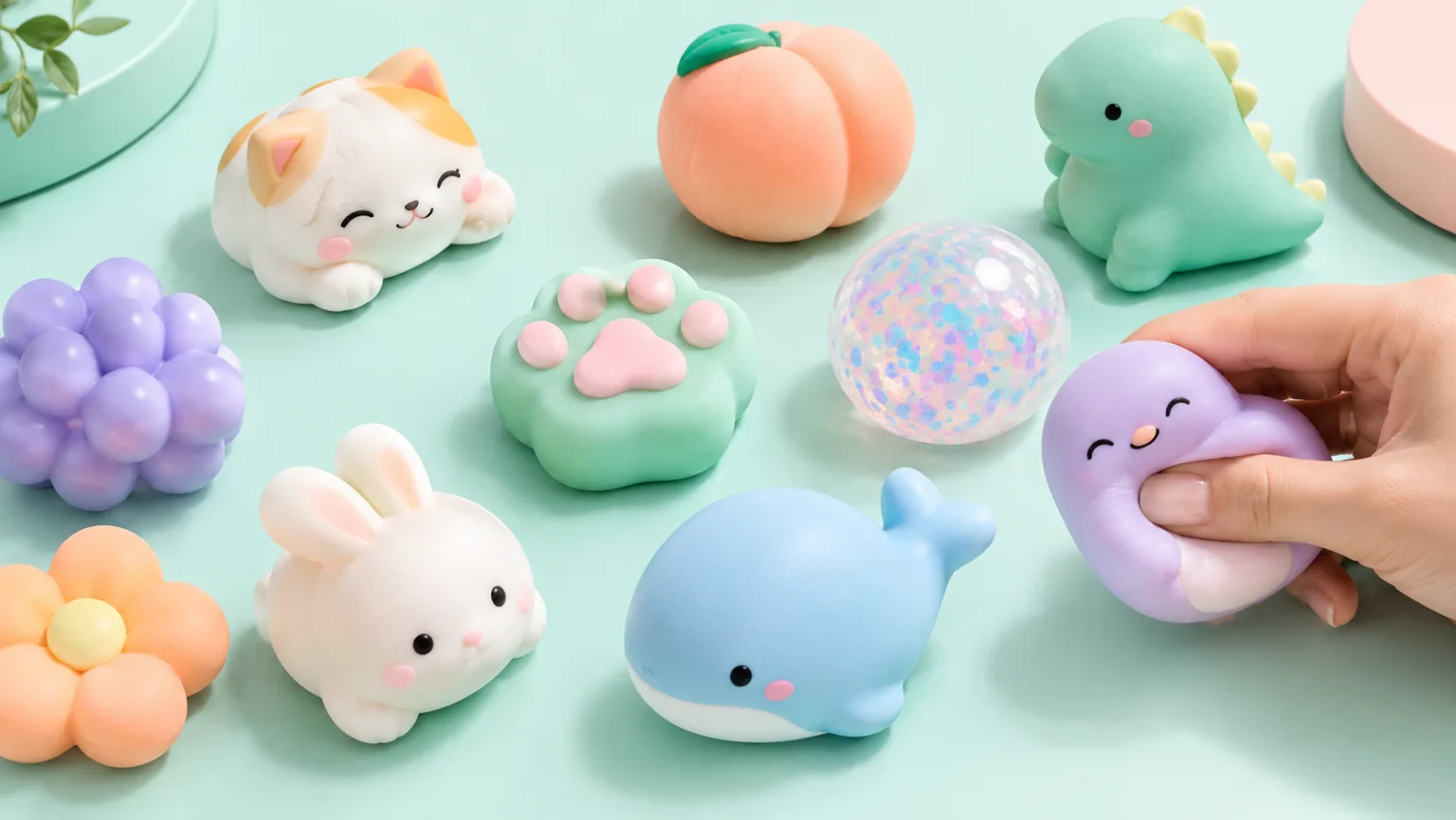
Squishy video
Squishy Video Generator
Create soft, satisfying squishy videos from a prompt or a still image. Focus on the press, the rebound and the surface texture, then generate a short clip that feels tactile at thumbnail size.
Squishy video
Try this workflow in the workspace
Your starter prompt is already loaded. Change the texture, motion or framing, then generate with the model that fits the result you want.
ai.video.generator.credits_cost
ai.video.generator.form.advanced
ai.video.generator.form.workflow_runtime_hint
ai.video.generator.form.fast_hint
ai.video.generator.form.generate_audio_hint
ai.video.generator.no_results
Squishy press starter prompt
A glossy squishy toy compressed by two fingertips, with a slow release and a soft studio background.
Macro product video of a colorful squishy toy squeezed between fingertips, slow compression and rebound, glossy and matte surface details, mint and peach studio set, soft key light, fixed camera, photorealistic, no text, no logos, no watermark.
What makes a squishy video satisfying
A squishy video works when the viewer can feel the material through the screen. That means the frame needs to show compression, a change of shape and a believable rebound. A soft object that dents but never recovers looks like a still image with a wobble. A good clip gives the eye enough time to see the surface fold, stretch and return.
The subject can be a collectible squishy toy, a foam stress ball, a jelly-like object or a product sample. The important part is not the specific item but the relationship between the object and the hand or tool pressing it. Keep the contact point visible and the background quiet so the deformation is the main event.
- Show the press, the maximum compression and the rebound.
- Keep the contact point inside the frame.
- Use a simple background so the shape change reads clearly.
Frame for texture, not for a product catalogue
A catalogue photo tries to show the whole object evenly. A squishy video usually works better when the camera is close enough to reveal pores, gloss, powder or tiny bubbles. The object can be cropped, as long as the viewer understands what is being pressed. A macro angle with a slight top-down tilt is a reliable starting point because it shows both the surface and the deformation.
If the clip is for a product page, include a wider shot after the close-up so the buyer can see the full item. If the clip is for social video, the close-up can carry the entire clip. Decide which job the video has before you choose the crop.
- Macro close-up for texture and deformation.
- Three-quarter angle for shape and context.
- Wider shot for product pages and size cues.
Describe the material in the prompt
Material words do a lot of work in a squishy prompt. Glossy, matte, powdery, translucent and jelly-like surfaces behave differently under light and pressure. Say which one you want, then describe the light that reveals it. A softbox creates a broad highlight; a hard side light reveals bumps and folds; a backlight makes a translucent object glow.
Also describe the hand or tool. Fingertips, a palm, a wooden stick and a metal roller create different stories. If you do not want hands in the frame, ask for a tool instead. If you do want hands, keep the instruction simple: two fingertips entering from the top edge and pressing slowly. Complex hand poses are harder to keep anatomically believable.
- Name the surface finish before the color.
- Describe the light that reveals the texture.
- Keep hand poses simple and partially cropped.
A repeatable squishy motion recipe
A reliable recipe is a slow press, a short hold and a gentle release. The hold gives the viewer time to register the shape; the release shows the rebound. Add a very slow push-in only after the basic press works. If you add camera movement too early, it becomes difficult to tell whether a weak result came from the motion or from the camera.
For a loop, end the clip near the starting shape. For a standalone clip, let the object settle and hold for a beat. The same prompt can produce both versions if you change the ending instruction rather than rewriting the whole scene.
- Press slowly, hold briefly, release gently.
- Add camera movement only after the press reads clearly.
- Choose a loop ending or a settled ending before generating.
Check the physical logic
Squishy objects are forgiving, but they still have physical logic. The compressed area should be where the fingers are, the surrounding material should react, and the object should not pass through the hand. Check the fingers, the object edges and the shadow under the contact point. If the shadow stays fixed while the object moves, the clip will feel pasted together.
If the clip is for a product, compare the generated color and finish with the real item. A stylized close-up can be a useful mood asset, but it should not imply that the buyer will receive a different texture or size. Keep a clear boundary between creative visualization and product documentation.
- Check contact shadows and object edges.
- Compare color and finish with the real product.
- Do not use a synthetic close-up as proof of a physical demo.
Model and provider notes
Image workflows use the configured KIE model catalog, including GPT Image 2, Nano Banana 2, Seedream, FLUX and Qwen where available. Video workflows use the configured Seedance provider chain, with fallback routing to KIE, WaveSpeed, SeeAPI, fal or Replicate where enabled. Model availability, resolution, duration and credit cost depend on the workflow you select.
AI output varies between runs. Check hands, reflections, text, anatomy and motion before publishing, and label synthetic media where your platform requires it.
Questions creators ask
Related ASMR workflows
Pick the next workflow that matches the texture, motion or subject you want to create.
Squishy ASMR Generator
Create squishy ASMR videos built around touch, sound and a slow reveal. Use the workspace to shape a close-up, control the compression and keep the visual rhythm calm enough to loop.
Slime Video Generator
Create glossy slime videos that show the stretch, the fold and the bubble instead of hiding them. Start with a prompt or a still image, then generate a short clip with a clean background and a readable motion path.
Satisfying Video Generator
Generate oddly satisfying videos built around a clean action, a readable texture and a loop that invites another watch. Start with a prompt or a still image and keep the frame focused on the moment that pays off.
AI ASMR Video Generator
Turn a text prompt or a still image into a short, satisfying ASMR clip. Squishy ASMR gives you a working video workspace, starter prompts and separate workflows for squishy, slime, sand, soap and food textures.
Make the press feel real
Load the squishy press recipe, generate a short test and refine the rebound before you add a second object.
Published by Squishy ASMR · Last updated 2026-10-22